
Upload your scorer photo
Choose one person with their face, full outfit and shoes visible. Upload your photo; the football scene is already prepared.
Choose a clear full-body photo, select 8 or 15 seconds and 720p, then generate your video. Follow this guide to track its progress, play the result and download the MP4 from My Videos.
Choose one person with their face, full outfit and shoes visible. Upload your photo; the football scene is already prepared.
Select an 8- or 15-second video in 720p. Review the displayed credit cost, then generate with template audio included.
Follow the saved task in My Videos. Play your completed goal video with sound, download the MP4 and save your favorite take.
Cropping a group photo can help only if the remaining person is still clear and complete. Increasing an image's dimensions does not restore missing facial detail.
Upload one JPG, PNG or WebP up to 10 MB. If the file is HEIC, export it to a supported format before uploading. Preview the selected image and confirm permission before submitting.
Choose one person, photographed head to toe. Make sure the face is clear and the body is not hidden by furniture or another person. Upload a JPG, PNG or WebP file smaller than 10 MB.
Open the creator and choose 8 seconds for a compact highlight or 15 seconds for the longer reference-led sequence. Videos use 720p. Review the credit cost and confirm permission to use the photo. The scene and template soundtrack are already prepared; you do not need to upload a football reference or write a prompt.
After you generate, open My Videos to follow the same saved task from photo checking to video processing and completion. You can return to the page later. If the status is delayed, keep the existing task rather than paying to submit it again.
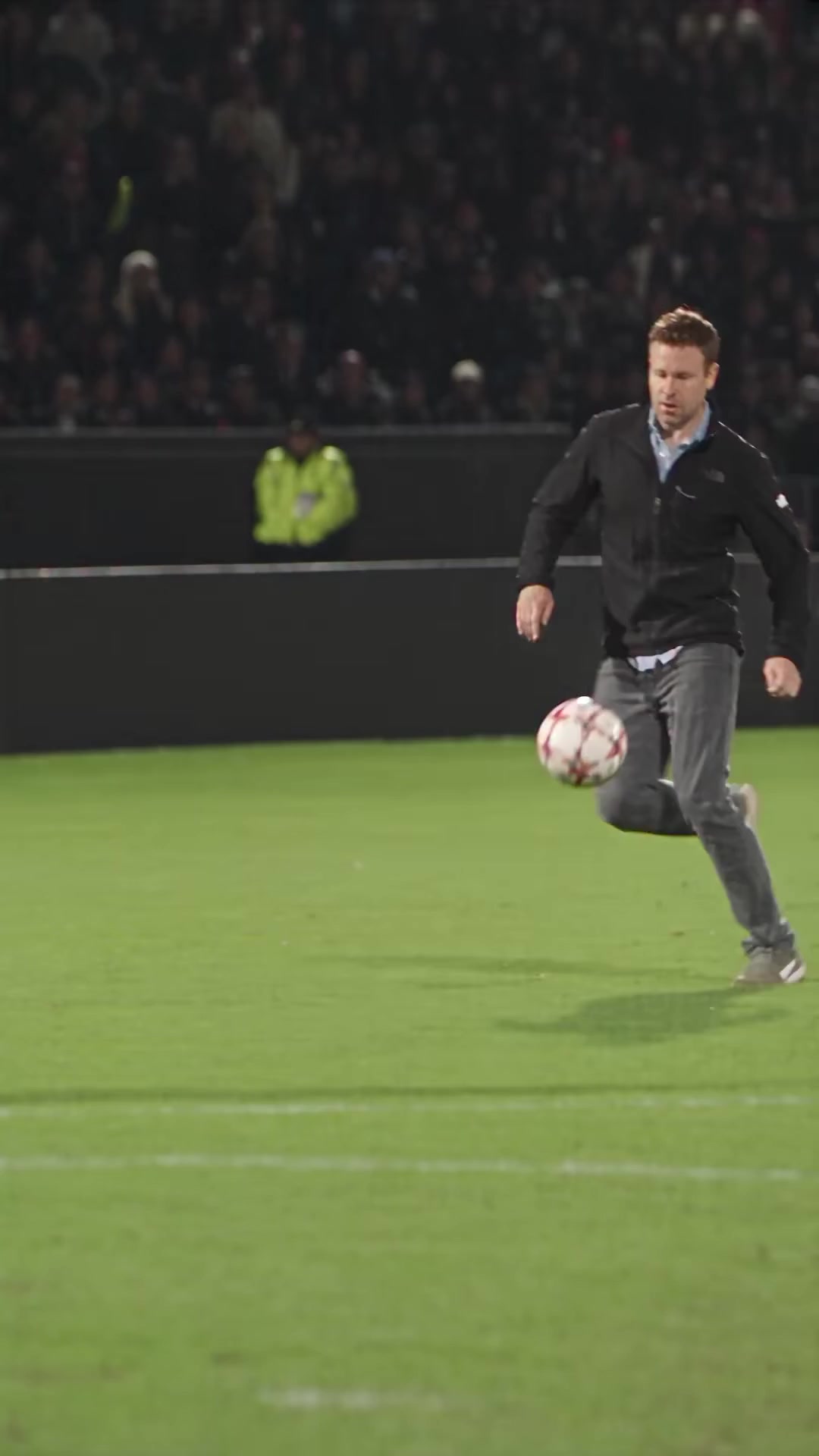
Watch the face, hands, shoes and ball. Look for the chip, movement past the defender and shot. AI recreation can change small details and does not guarantee an exact replay.
Open the completed clip in My Videos, play it with the template soundtrack and use Download to save the MP4. Keep a local copy for a match-day post, a birthday message or your football group chat.
Try a sharper, less cropped image with more even lighting. If upload fails, check the file type and size. A disabled generate button may mean the service is unavailable, the permission checkbox is unchecked or no photo has been selected.
Both video lengths use a portrait 9:16 frame. Choose a full-body source photo so the face, outfit and shoes can be used throughout the run and finish.
720p output is included with both video lengths. Your photo defines the scorer and outfit in the vertical goal video. The exact cost is shown in the creator.
Choose 8 seconds or 15 seconds in the creator, then select 720p. Preview your finished MP4 in My Videos and download a local copy.
Both duration options include the template soundtrack. The 8-second option fits the move into a short highlight; the 15-second option follows the longer reference sequence. Processing time depends on the video service.
Understand credits and generation costs →Open the completed task in My Videos. Watch the goalkeeper chip, defender move and finish with the template soundtrack before choosing the take you want to keep.
Compare the face, hair, clothes and shoes with your source photo. Watch the ball through the chip and finish so you can select a version you are happy to share.
Use Download in My Videos to save the completed file. Keep a local copy for a birthday message, a match-day post or a football group chat, and preview it in your posting app.
Changing the input photo after completion means creating another video; it does not edit the downloaded clip. Review the current credit cost before making another version.
Follow the complete creation and troubleshooting guide →Check that it is one JPG, PNG or WebP no larger than 10 MB. Renaming a file extension does not convert its format. Export a new copy if necessary, then choose it again.
Select a supported photo and confirm that you have permission to use it. Check the availability message, sign-in state and credit balance. If the service is unavailable, buying credits will not make it available.
Try a sharper, evenly lit full-body photo with fewer obstructions. Keep expectations realistic: the instructions request identity consistency, but do not guarantee an exact likeness throughout motion.
A clear person photo cannot fix every motion error. Review the chip, defender interaction and finish separately. The fixed creator does not offer frame-by-frame editing; a new generation may differ and consumes credits.
Check the existing task before submitting another. A delayed status is not the same as a confirmed failure. Keep the task ID for investigation; an uncertain provider response may need review.
A confirmed failed generation returns the credits consumed by that task. That is separate from a refund of the credit-pack payment. Check the task and billing record before paying or generating again.
Choose your scorer, keep their outfit as the reference and turn the goal sequence into a personal football highlight.
Choose your photo Prefer to write your own scene? Try the Prompt Builder.